 HackingPassion.com
Clear Your Tracks on Linux
Ethical Hacking Complete Course Zero to Expert
Hack like black hat hackers. Penetration testing, Kali Linux, WiFi and web hacking, and the hacker mindset behind it.
→ Take the full courseUpdated: June 14, 2026
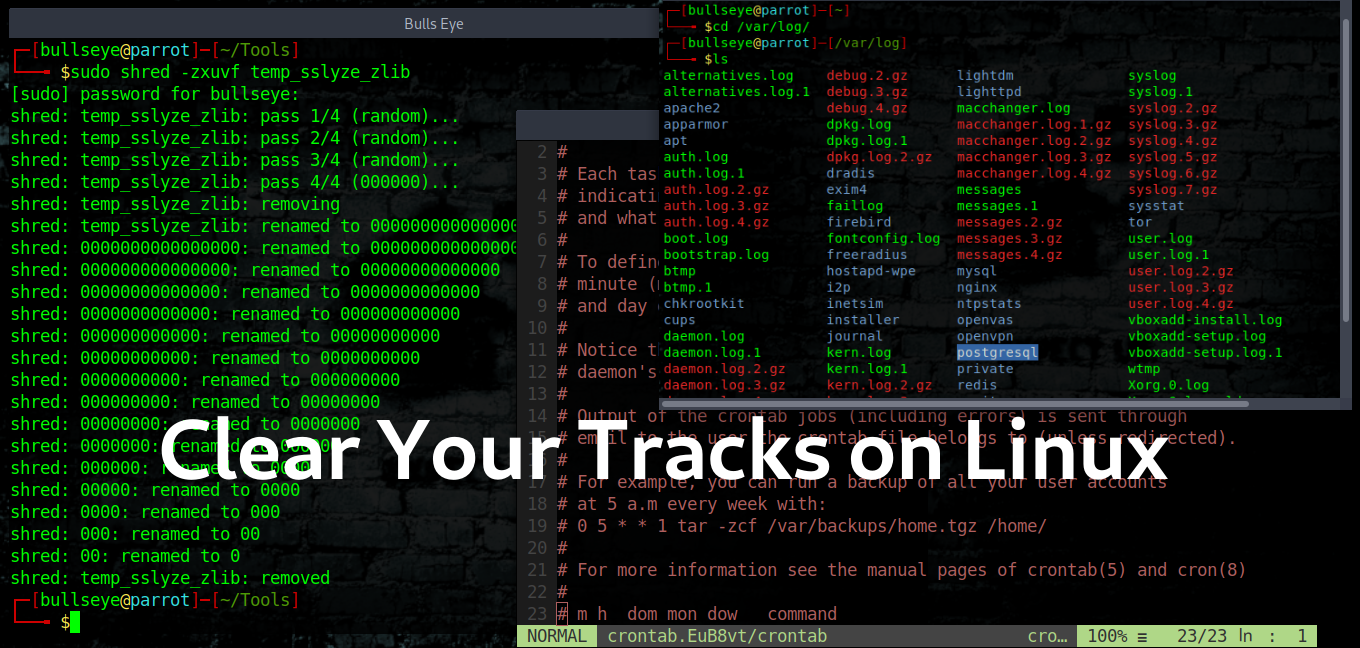
In this article and video, I show you how to clear your tracks in Linux. This is very important if you are a penetration tester, an ethical hacker, or a cyber security expert.
Clear Your Tracks The Final Step
It is one of the biggest mistakes an attacker makes to leave a track behind.
If you look at the biggest attacks of the past years, the detection was often made really easy by the malware the black hat hacker(s) left behind and never cleared. Many of the “best hackers” got caught this way.
As an attacker you first have to clear your logs, modify the registry, or clear the registry entries you created. And at the end you remove any files or commands you have been using. “Clearing Your Tracks” is really underestimated in my opinion.
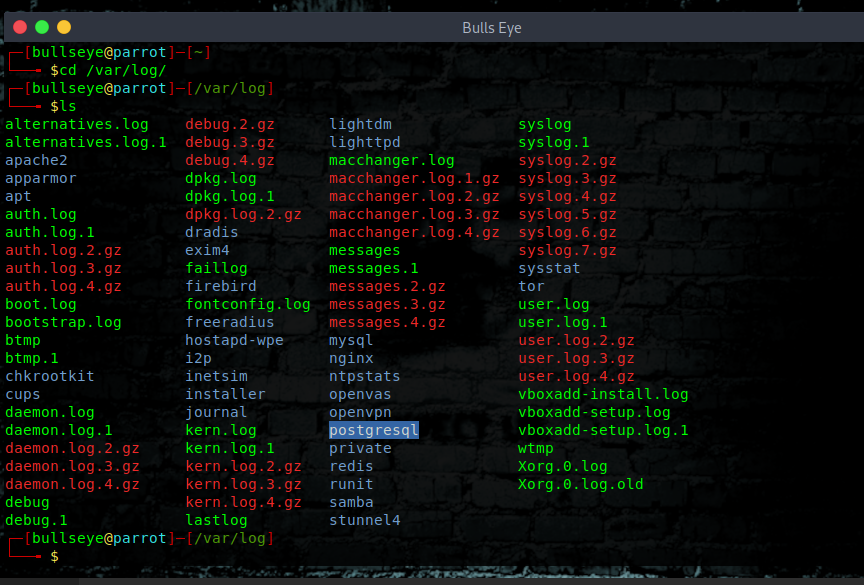
cd /var/log
As you can see below, when we open cd /var/log there are a lot of logs. It is pretty self-explanatory, you can guess most of them from the names. These logs have all kinds of uses. There is a user log, a mac changer log, an authentication log, and a kernel log too, which is always interesting.
auth.log
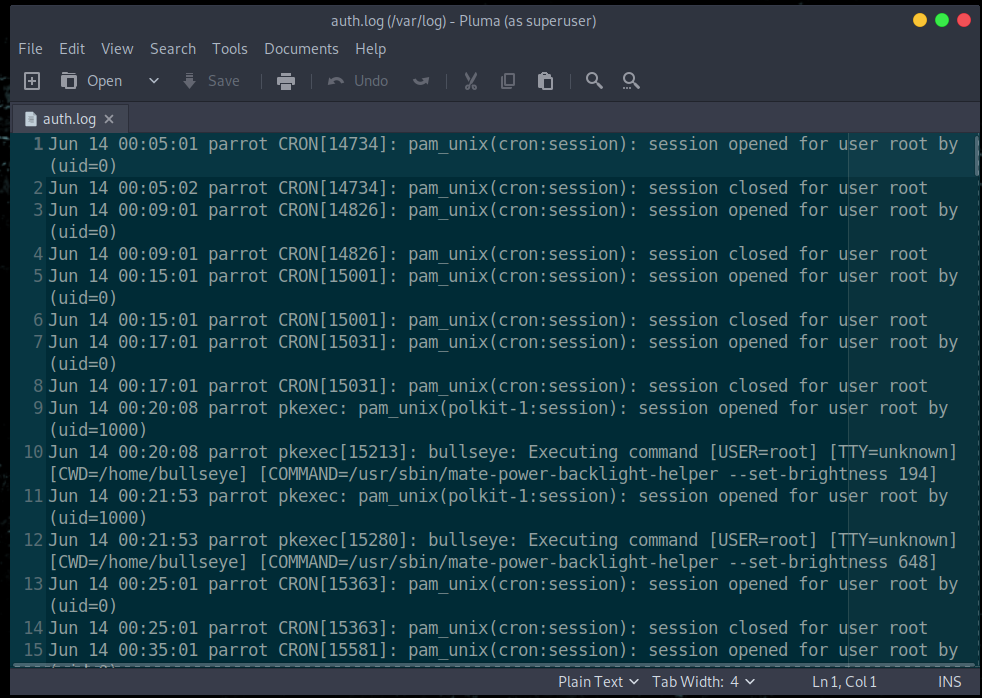
The authentication log stores everything around logins, which is very important to a forensic team. They can analyze what happened and what activities were done. You can of course use any text editor you like, vim, nano, pluma, or any other.
| |
On Kali and Parrot that file /var/log/auth.log is still sitting right there, because both still run the old and trusted logging service called rsyslog. Plenty of other systems have moved on to a newer one called the systemd journal. On those machines there is no plain text file to open with nano. The logs live in a packed binary database under /var/log/journal/, and you read them with a tool called journalctl instead.
| |
So before you go hunting for a file that is not there, check which logging service the machine in front of you is using. And one thing to keep in the back of your head for newer systems. Since systemd version 259, which arrived at the end of 2025, the journal keeps its logs even after a reboot by default. Older boxes sometimes wiped the journal on restart. Newer ones hold on to everything, so there is more history waiting in there than people tend to expect.
On a journald system the plain file tricks below do nothing, because the logs are not in a plain file. You rotate the active journal first, then drop everything older than a moment ago.
| |
| |
kern.log
Another log you can use to view kernel information is the /var/log/kern.log file, this logs the kernel information and events on your system, it also logs dmesg output.
| |
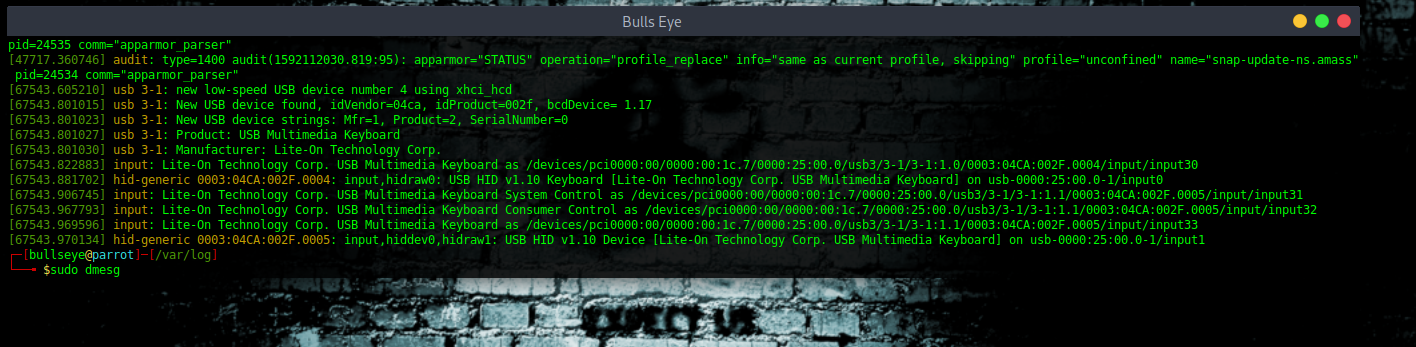
What you are looking at here is the output of sudo dmesg, not the contents of the /var/log/kern.log file itself. Same kernel messages, just pulled straight from the kernel ring buffer instead of read from the log file on disk. Handy when you want to see what the kernel is doing right now.
You can see what’s going on. I will not explain right now, because this can be another topic for another time. But I think you will get the idea.
Clear Your Tracks with Shred
Shred is an amazing tool and for sure one of my favorites..! What shred does, it overwrites a file so the old contents cannot be read back, and then it removes the file.
But why don’t we just simply delete all those files, because all the deleted files can be recovered, and overwriting them with shred makes the old data unreadable
Shred overwrites the file with random data several times, then it can add a final pass of zeros, and at the end it removes the file completely.
Now let’s explore the help menu of shred
It is all self explained.. you may also want to have a look at the man page of shred.
| |
| |
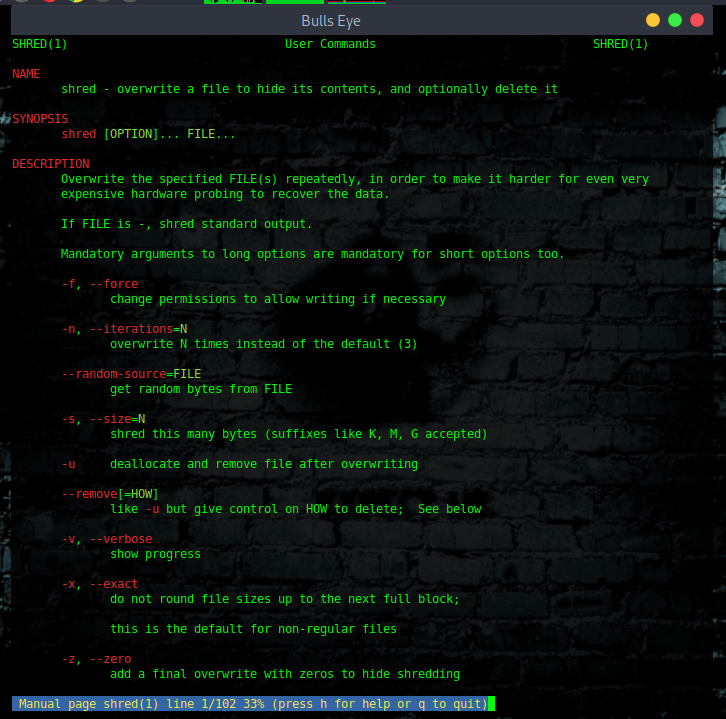
Now let’s remove a file and clear your tracks
| |
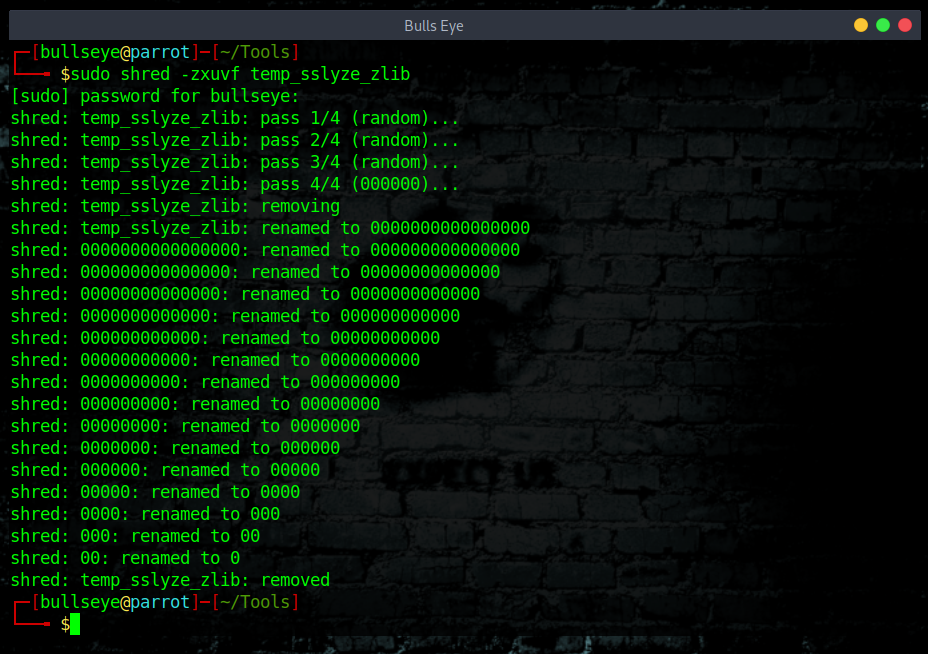
The command (Explanation) I used for this ::
| |
As you can see it has overwritten the file pass after pass and finally removed it.
This can not be recovered.
That holds up on a spinning hard drive, the kind with platters turning inside. On a solid state drive the story is different, and I come back to that further down, because it changes everything about how you wipe a file.
Apart from that, your bash history is also very important. Even a normal Linux user can guess what someone has done looking at the file, so make sure you delete that as well. You can delete that with shred also but I am not going to do it with shred this time.
Once again, be aware that all files that are normally removed can be recovered..!
Delete The History And Clear Your Tracks
| |
| |
Using the redirect for now
| |
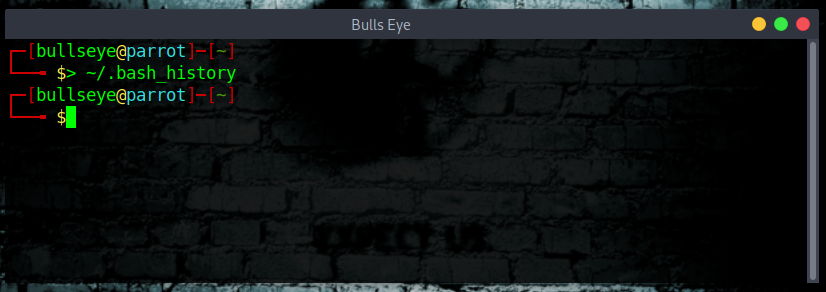
Here we go the history is cleared.
One catch though. Emptying the file is not the whole job. The commands you typed in this session are still sitting in memory, and bash writes them back to the file the moment you log out. So you also have to clear what is in memory and stop it from saving on exit.
| |
| |
The first one wipes the history of your current session. The second one cuts the link to the file, so when you close the shell there is nothing left to write back.
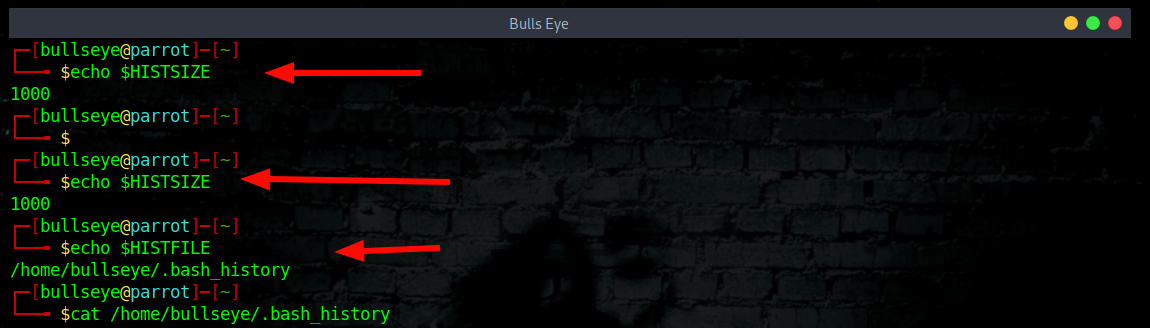
Command history #command-history
All your commands are stored at:
| |
| |
You can set your file-size like this to zero, to avoid storing commands.
| |
If you set it when you get shell you won’t have to worry about cleaning up the history.
Watch Your Timestamps
Wiping a log is one thing, but a file leaves another track that people forget about. Every file carries a set of timestamps, when it was last changed, when it was last opened, when its metadata changed. A forensic team reads those like a diary. If you touched a file at 3 in the morning, that time is sitting right there in the metadata.
You can see those times with stat.
| |
And you can set them back to whatever you want with touch. This copies the timestamps from one file onto another, so the file you touched looks like it was never touched.
| |
Keep in mind this only changes what the filesystem stores. It does not rewrite history that already landed in a log somewhere else. Putting timestamps back is about not standing out, not about magic.
Automate the Clearing of (any) File
To automate the process so that the command history is deleted each day. In this way, if we forget to remove our history (I’m sure I will often) :-D , the system will do it at 11:00 p.m. every day, automatically.
First, open the crontab table in edit mode by typing:
| |
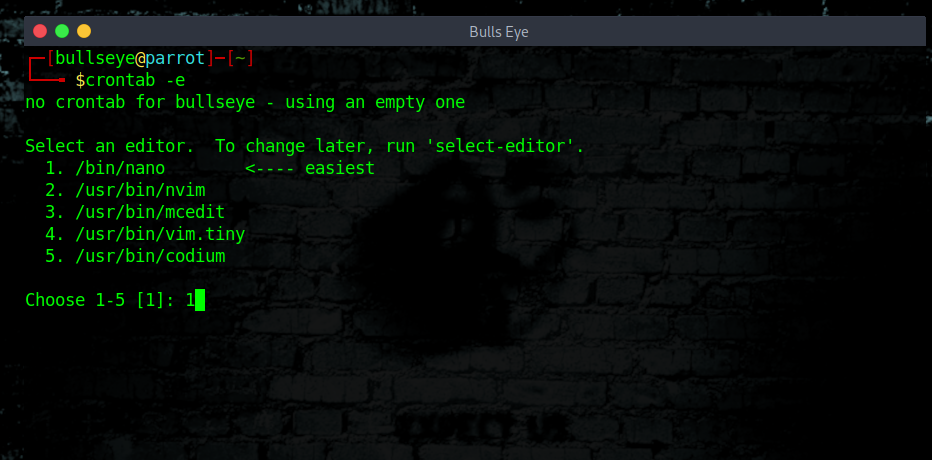
Using the crontab, we can navigate to the end of the file and add the following line. A cron line starts with five time fields, minute, hour, day of month, month and day of week. The five values below mean minute 0 of hour 23, every day, every month, every weekday. So at 11 in the evening, the file gets emptied.
| |
In the article below I describe in more detail about the cronjobs
* https://hackingpassion.com/determine-if-your-linux-computer-or-server-is-hacked/#Crontab_scheduled_jobs
Secure-Delete
Secure-Delete is a set of tools for Linux operating system and they provide advanced techniques for permanent removal of files. Once Secure-Delete has been installed on any Linux system, it provides following four commands:
- srm
- smem
- sfill
- sswap
| |
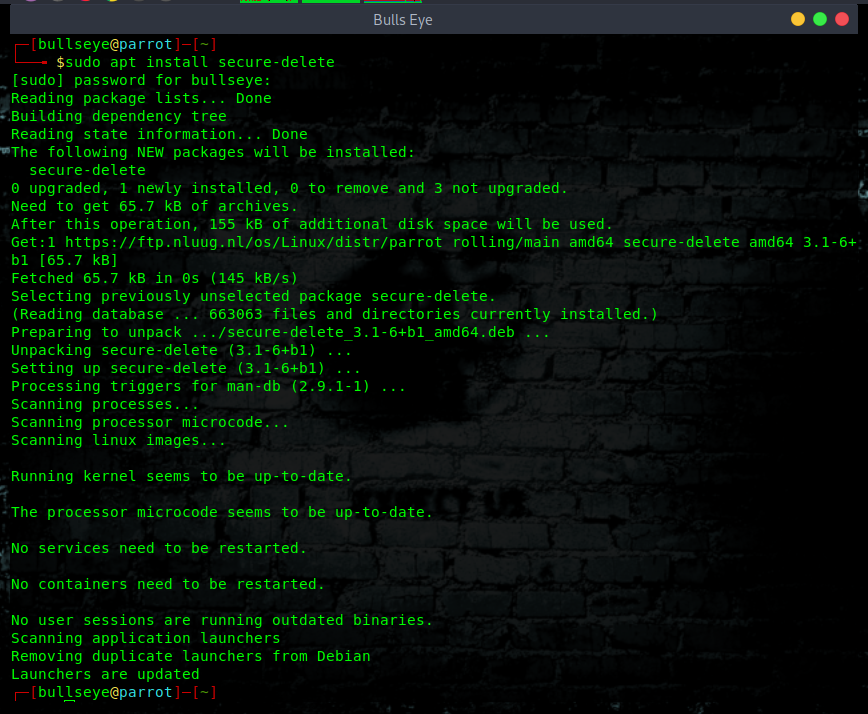
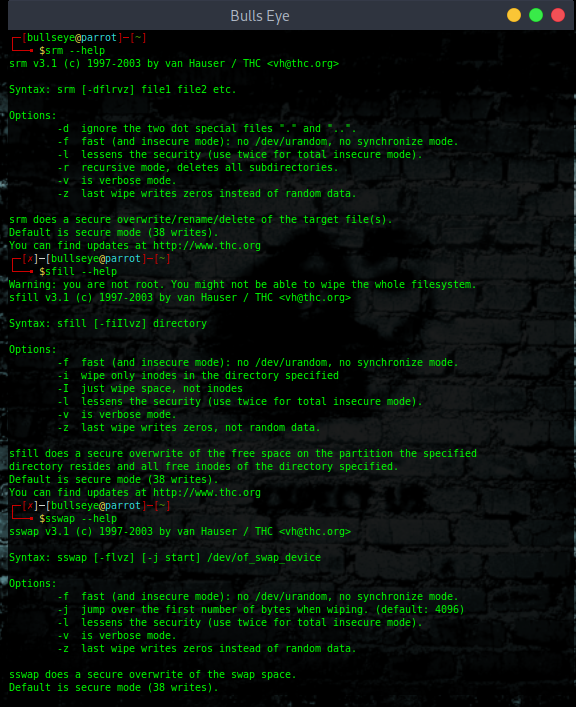
Keep in mind that this toolset, just like shred, was built in the days of magnetic drives. It hardly gets any updates anymore, and on a solid state drive it runs into the same wall I describe below. Handy to know before you lean on it.
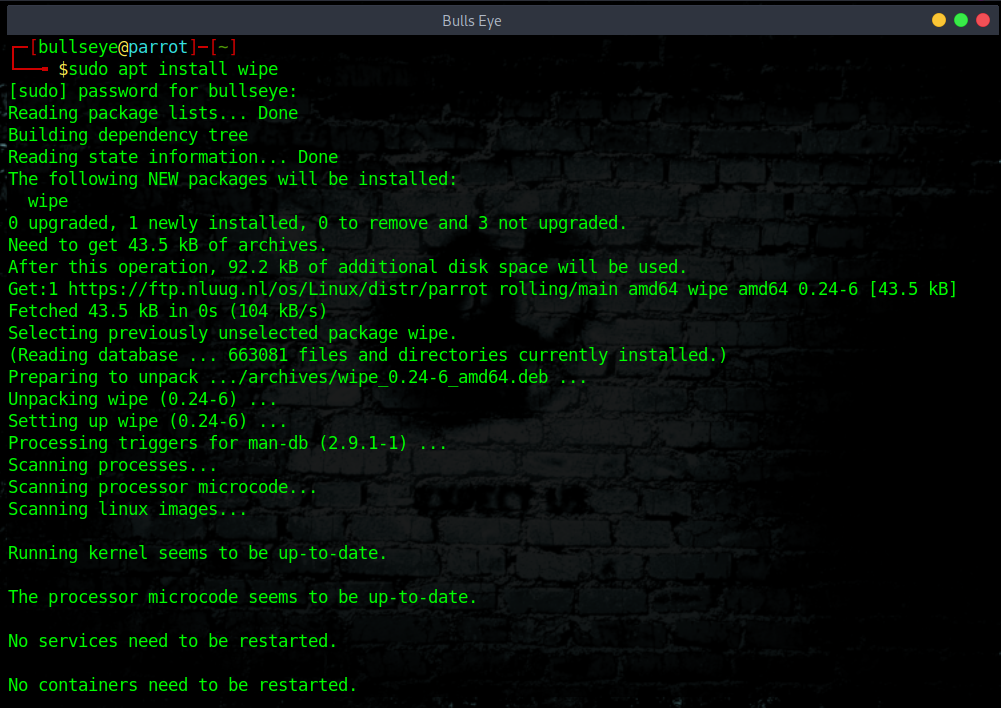
Install Wipe
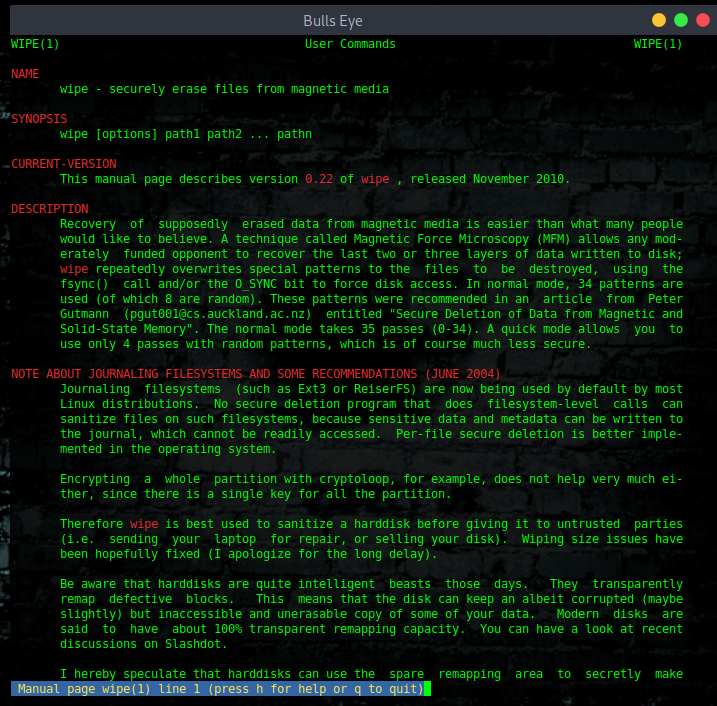
“Wipe was originally developed to securely erase files from magnetic media. Wipe repeatedly overwrites special patterns to the files to be destroyed, using the fsync() call
and/or the O_SYNC bit to force disk access. In normal mode, 34 patterns are used (of which
8 are random).”
You can remove the contents of a single file, folder, or entire hard disk with this command, but the whole hard disk format using wipe command will take a good amount of time.
| |
| |
| |
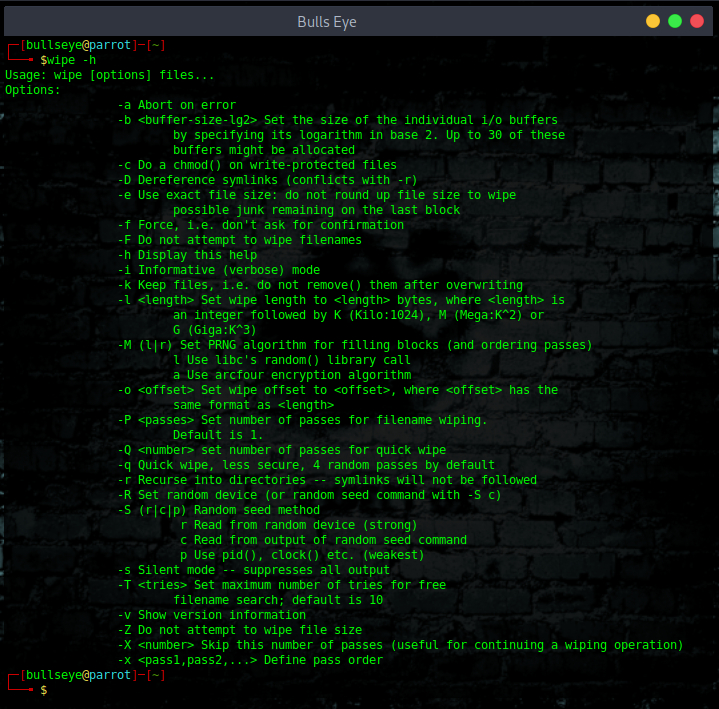
Remove any file as:
| |
Remove any directory as:
| |
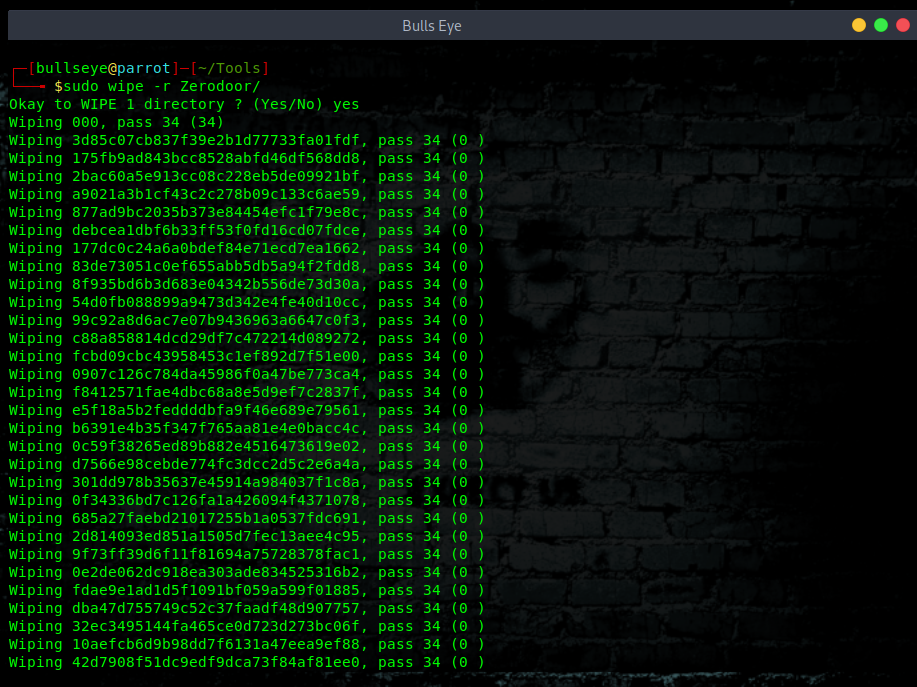
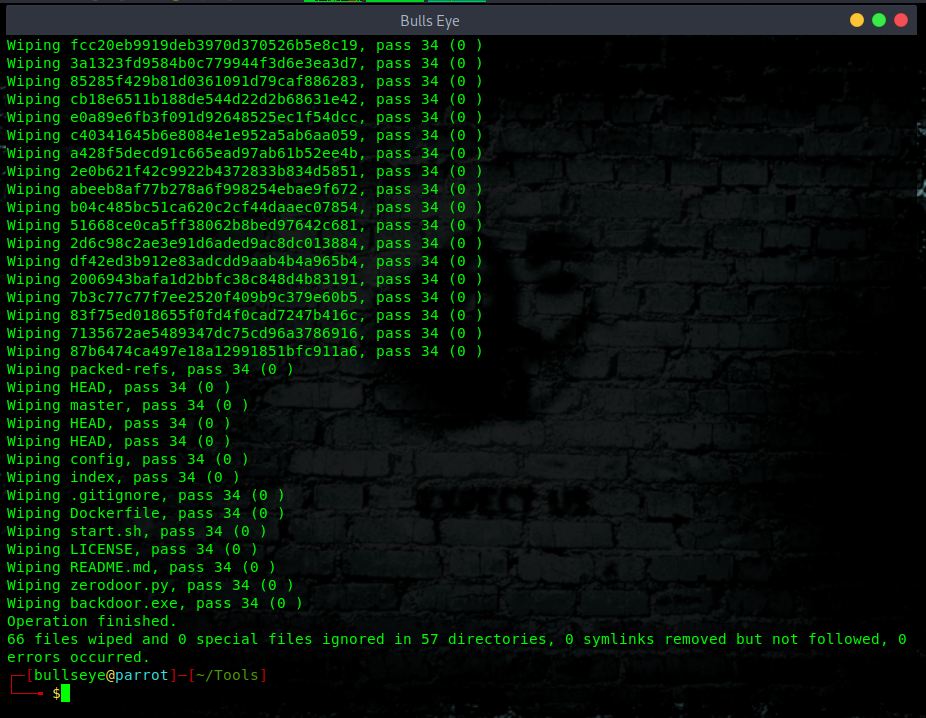
What About SSDs
This is where people get caught out. Everything above does exactly what you expect on an old fashioned hard drive, the kind with spinning platters inside. You overwrite the spot where the file used to live, and the file is gone for good.
A solid state drive does not play by those rules. To keep itself alive longer, an SSD spreads your writes all over the chip instead of putting them back in the same place. That trick is called wear leveling. So when shred thinks it is laying zeros on top of your file, the controller inside the drive quietly drops those zeros somewhere else and leaves your original data sitting in a cell you can no longer reach from the outside. It looks gone while it is still right there. The same goes for USB sticks and SD cards, because they are built from the same kind of flash memory.
So shred, wipe and secure-delete give you a false sense of safety on anything that is not a spinning disk. Good to know before you count on them.
What does work on an SSD. Two ways, and both do the job.
The first one is to let the drive clean itself from the inside. The firmware on the drive carries a built in command that clears every cell, including the hidden spare area you normally cannot touch. On an NVMe drive you trigger that format through the drive itself. Swap the device name below for your own disk.
| |
The second way, and the one I like best, is to make sure there is never anything readable on the disk to begin with. You encrypt the whole drive from the first day with something like LUKS. The moment you want it all gone, you destroy the encryption key. The bits are still physically on the chip, but without the key they are just noise that nobody turns back into files. This goes by the name cryptographic erase, and it is done in seconds. No grinding away at the cells, no sitting around waiting.
And when the data really matters and the drive is leaving your hands for good, the hammer still wins. Physical destruction is the one method that gives you a hard guarantee.
Some other tricks
Check for hidden files
Are there recent hidden files?
| |
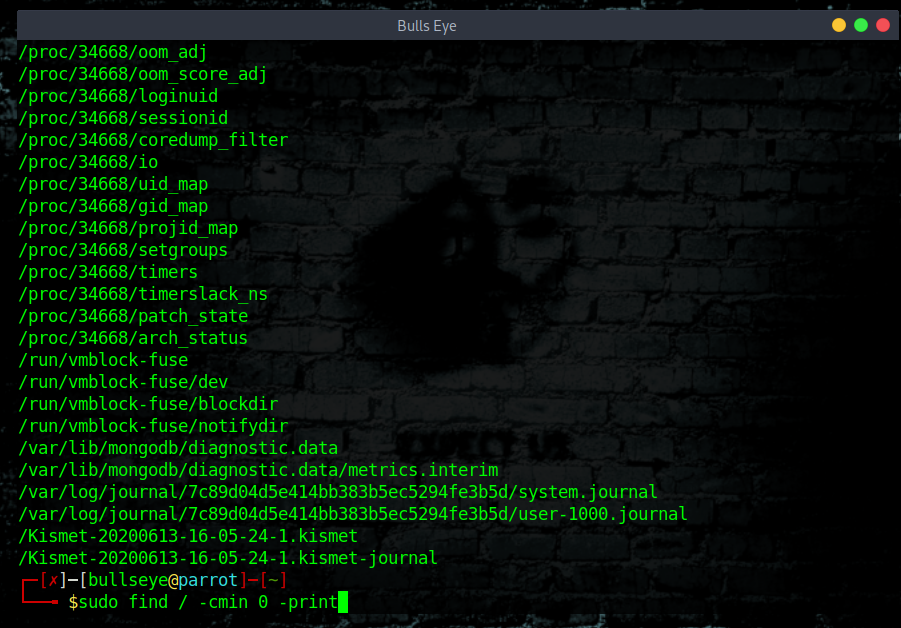
Check what are the currently open files on the systems.
Currently open and active log files?
| |
Check what are the recent documents on the systems
Recent documents on the system?
| |
Don’t forget to remove your Browser History
Obviously, you should also think about your browser history, your cookies and so many other things. (more about that in another article)
Linux distribution Tails
A good option is to use a Tails for example, which you install on a USB. After shutting down or restarting the system, all downloaded files, browser history, etc. - are deleted.
This whole article is about Linux, but Windows keeps its own trail. Over there the action lives in the event logs, and you clear them with wevtutil cl System from the command line, or with clearev once you have a Meterpreter session. Different system, same idea. I save that one for its own article.
Clearing your tracks is the last step of an engagement, but knowing where the logs live and how to wipe them properly is only half the story. In my ethical hacking course I walk through the full post-exploitation chain step by step, from getting in to escalating privileges, staying hidden, and covering your tracks the way real red teams do it.
Join my complete ethical hacking courseClear Your Tracks linux Video
In this video, I show how you give the terminal an attitude. Is this important? No, certainly not, but it is fun.
Then I will show you where to find your all log files, and how to delete them in an easy and good way. I hope you enjoy the video ..! Talking is still a thing :)
Become a member on Odysee.com
https://odysee.com/$/invite/@hackingpassion:9
Clear Your Tracks Conclusion
I hope that from now on you think a little further than the usual “How to hack”. Before you start doing anything, you should already have thought in advance ::
"How am I going to make sure I don’t leave any tracks behind"
And one honest note to end on. On a real target the logs are often not only on the machine you are standing on. Companies ship them off to a central log server or a SIEM the moment they are written. You can scrub the local copy clean, but the copy that already left is out of your reach. So clearing your tracks is real work, it is just not a magic delete button. The best track is the one you never left in the first place.
Stay updated
Get the latest posts in your inbox every week. Ethical hacking, security news, tutorials, and everything that catches my attention. If that sounds useful, drop your email below.