 HackingPassion.com
Sign in with Google and How to Clean Up the Apps Connected to Your Accounts
Ethical Hacking Complete Course Zero to Expert
Hack like black hat hackers. Penetration testing, Kali Linux, WiFi and web hacking, and the hacker mindset behind it.
→ Take the full courseThat little “Sign in with Google” button has quietly handed dozens of apps a way into your accounts, and changing your password does not lock most of them out. They were approved with one click, years ago, and never looked at again.
You know the button. It sits on one signup page after another, right under the empty username box. Sign in with Google. Or with Apple, Microsoft, Facebook, GitHub. You tap it, you pick the account you already have, and you are in, with no new password to invent and nothing to write down. It feels like the easy, safe choice, and usually it is.
Look at what you hand over when you tap it. You are telling that website to go ask Google who you are, and Google vouches for you. Your password never reaches the website. That part is good. The weak password you would have picked for some random forum, the one you reuse everywhere, never gets created, and one strong account with two-factor authentication stands in for all of them.
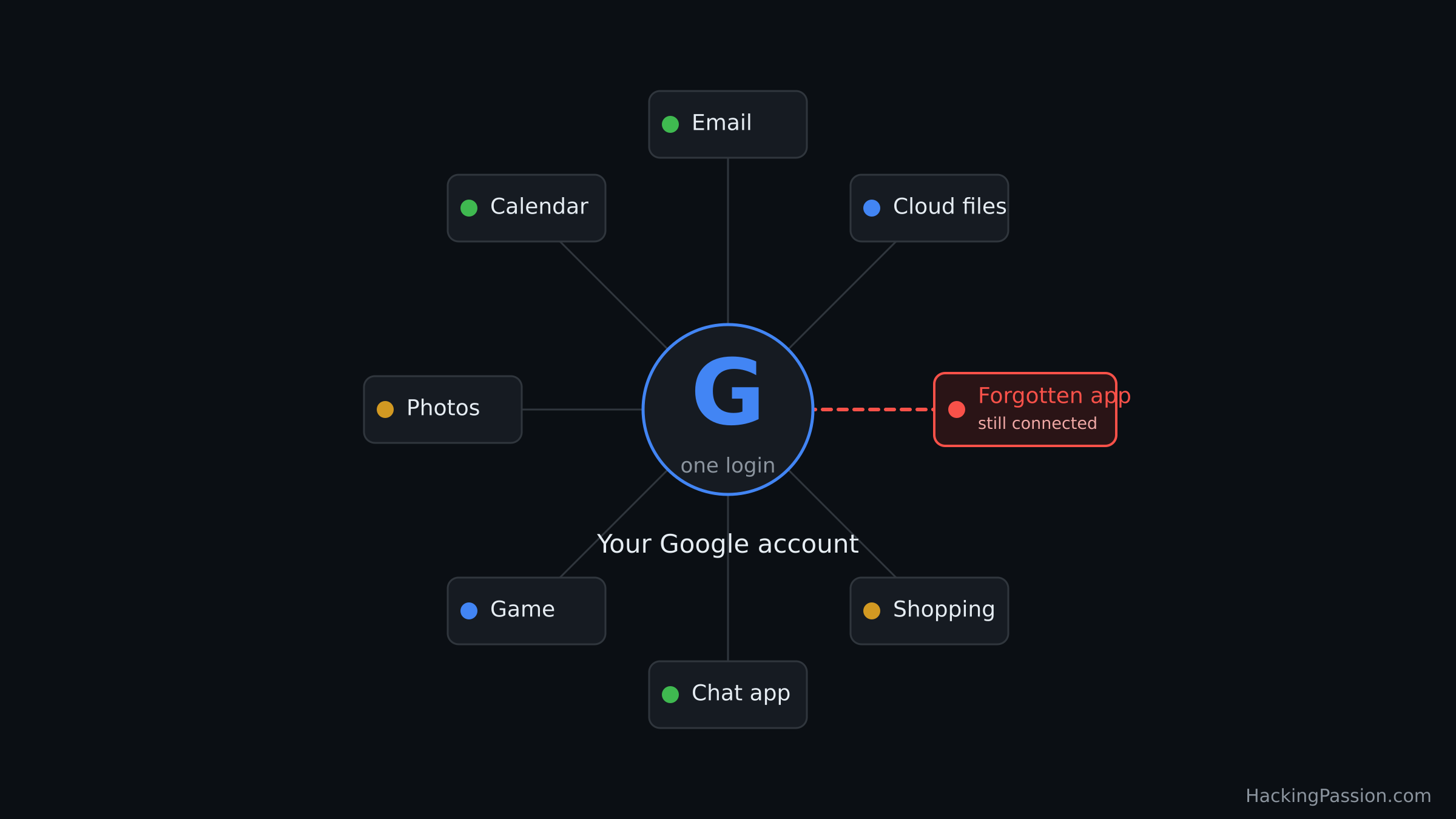
The trouble is that this one account is now the way into the rest. Your email, your files, your old shopping sites, that app you tried once and forgot: they all lean on Google to say you are you. So if someone gets into your Google account, your email is the least of it. They can walk straight into those other accounts too, with no extra password to crack.
A break-in is only one way this goes wrong. It can also go the other way. If Google, Apple or Facebook locks or suspends your account, for a rule you broke without knowing or a mistake on their side, the way into each service you signed in with stops working at the same moment. Your mail, your files, the shops, the tools, sometimes accounts with money attached, all shut at once, and you are left arguing with a support form to get any of it back. One account held it all, so one account can take it all away.
A quieter cost comes with it. Each time you use the button, Google notes that you did, and over the years that becomes a tidy picture of where you go: the shops, the forums, the tools, the apps you would rather keep to yourself. The button is handy, and it hands that running list straight to Google.
Two kinds of connected apps
Open the list of apps tied to your account and you will see a jumble. Some of them only use Google to log you in. That is it. They wave you through and touch nothing else. Others asked for more, and you said yes without thinking twice, because the screen went by fast.
That second kind is the one to watch. When you first connected it, a screen popped up listing what the app wanted. If it only asked for your name and email, that is a plain login. But if it asked to read your email, open your files, or post for you, and you tapped Allow, that app can now reach into your account whenever it likes, until you stop it.
Say you signed up for a photo app three years ago with Sign in with Google and let it into your Drive. If it has kept checking in since, it still reaches your files, and you have not thought about it once. One thing works in your favour: Google lets a connection’s access expire after six months without use, so a long-forgotten app may still sit in your list but no longer have working access. The ones still quietly syncing in the background are the ones that stay dangerous, especially if that company has since been sold or breached.
Here is a simple check for the next time that screen appears. Ask whether the app really needs what it is asking for. A game has no reason to read your Gmail. A photo filter has no reason to see your contacts. If the request is bigger than the job, that is your cue to back out instead of tapping Allow.
Three things that feel safe but do nothing
This is where clean-ups usually go wrong. You do the obvious thing, feel safer, and the connection is still sitting there wide open, because the obvious thing never touched it. These three come up again and again.
Changing your password barely helps. The app runs on a separate token, a long code that stands in for you, and it holds on to that code regardless of your password. A new password only cuts off apps that can read your Gmail; the sign-in links and the apps that reach your Drive, calendar or contacts keep right on working.
Deleting the app off your phone does not help either. That permission sits in your Google or Apple account, up on their servers, not in the app on your phone. Delete the app and the account still lets it in.
Removing a connection does not wipe what the app already took. Cut its access today and it stops getting anything new, but whatever it already copied is still sitting on its servers. For that you have to open the app itself and delete your account there.
If that sounds theoretical, it is not. On 1 September 2026 the FBI put out a warning about an attack called consent phishing. Someone sets up a legitimate-looking app, sends you a link, and you land on a genuine Google or Microsoft screen asking you to Allow. You tap it, thinking it is normal. No password is ever stolen, because the attacker does not need one.
The FBI spelled out the hard part: once you have tapped Allow, changing your password will not get rid of them. The access “can only be revoked by the victim invalidating the token in their application security settings.” In other words, you have to go into the list and pull it out by hand.
What to do, step by step
Cleaning this up takes about fifteen minutes, and you only have to do it properly once. Here is where to go.
One thing to sort out before you start pulling links. If a site only ever let you in through Sign in with Google, and you never set a password for it, then the moment you remove that link you are locked out of your own account there. So for anything you still want to keep, open that site first, set a password or add a second way to log in, and only then cut the Google connection. For the stuff you are done with, pull it and move on.
Start with Google, since that is the big one.
- → Open
myaccount.google.com/linkedappson your phone or laptop. - → Tap the filter that says “Sign in with Google” to see the sites you log into this way.
- → Tap one, open See details, and choose Stop using Sign in with Google. Do that for anything you do not recognize or have not used in a year.
- → Then switch the filter to “Access to your Google Account.” These apps can read your data, so be stricter here. Tap any you do not trust and choose Remove access.
The rest work the same way, in a different spot.
- → Apple: on your iPhone, open Settings, tap your name at the top, then Sign in with Apple. On a computer, go to
account.apple.comand look under Sign-In and Security. Tap an app and choose to stop using it. - → Microsoft: go to
account.microsoft.com, open Privacy, and find the apps and services that can access your data (the direct link ismicrosoft.com/consent). Pick the app and remove its permissions. - → GitHub: go to Settings, then Applications, then Authorized OAuth Apps. Tap anything old or unfamiliar and choose Revoke. One heads-up: on GitHub this also removes any keys the app set up for you, so check before you clear a tool you still use.
- → Facebook: open Settings and privacy, then Settings, then Apps and websites. Tap an app and choose Remove.
Do not worry if the list is longer than you expected. Work from the top, and when you are unsure about something, remove it. You can always reconnect it later with one tap if it turns out you need it. Keep the handful of apps you actually use, pull anything you do not recognize, and if you spot one you never signed up for, remove it and then check your recent sign-ins for anything odd.
And do one more thing while you are in there. Because this account is now the way into the rest, protect it as well as you can: turn on two-factor authentication, and add a passkey if the account offers one. That guards against a stolen password. It will not stop the consent-phishing trick above, though: once you tap Allow yourself, no second step stands in the way.
What to use instead: a separate address for each site
This is the single best habit here, and the part the step-by-step guides almost always skip. Stop giving out your main email address. When a site asks for it, hand over an alias instead: a stand-in address that forwards to your inbox without being your inbox, a different one for each site. If that site is breached, or quietly sells its list, the spam and the scams land on an address you can switch off in a second, and it never points back to the account that holds your mail, your photos and your logins.
Setting one up is quick, and free to start. The simplest route is Proton Mail. (That Proton link is an affiliate link: it supports this site, and signing up through it gets you a discount.)
- → Make a Proton account, then open
mail.proton.meand click the shield icon, the Security center, on the right. - → Open Hide-my-email aliases and click New alias.
- → Click Create and copy alias. That address is now on your clipboard, ready to paste into the signup form.
Install the Proton Pass browser extension and it gets easier still: when a signup page asks for your email, click the field, choose Hide my email, and it makes a fresh alias and fills it in for you. On an iPhone you already have a version of this: Sign in with Apple can hand a site a hidden, forwarding address for free, and Apple’s Hide My Email (part of iCloud+) lets you create your own one-off addresses on top of that.
Two things to know before you lean on this. Some free aliases can only receive mail, not send a reply, which is awkward when a shop needs to write back about an order, so pick one that can reply both ways. And because the alias service passes your mail through its own servers, pick one that states in writing that it does not read it. Proton, Apple and Firefox all say so.
If you want to go a step further, look at passkeys. Instead of a password, your phone keeps a private key and proves it is you with your fingerprint or face, so it cannot be typed into a fake page or reused somewhere else. And for your most important accounts, your main email and anything tied to money, think twice before using the button at all: a password in a password manager, or a passkey, keeps those off the one account the rest relies on.
You do not have to swear off the button. It fixed a genuine problem, and logging in with one guarded account is safer than scattering weak passwords across the web. The win is knowing what is tied to you, clearing out the apps and sites you left behind, and keeping the list short enough to recognize at a glance. The ones you use stay, and the forgotten ones are gone.
Cleaning this up is the easy half; the harder half is understanding how attackers find and exploit accounts like these in the first place.
My Ethical Hacking Complete Course Zero to Expert takes you there step by step: reconnaissance, scanning, exploitation and traffic analysis, hands-on, from your first day with no Linux or hacking background.
→ Join my complete ethical hacking course
Hacking is not a hobby but a way of life.
Sources:
FBI IC3 PSA I-090126-PSA | Google Identity: OAuth 2.0 token expiration | Google Account Help: manage links to third-party apps | Apple Support: Sign in with Apple & Hide My Email
Stay updated
Get the latest posts in your inbox every week. Ethical hacking, security news, tutorials, and everything that catches my attention. If that sounds useful, drop your email below.